Use descriptive headings, then provide a way for readers to see those headings and jump to the section they need. In Google Docs, heading styles can populate the document outline, and selecting an outline entry moves to that section. Add a glossary only when unfamiliar terms create a separate lookup problem; a short document may need no extra navigation. Source 10.2
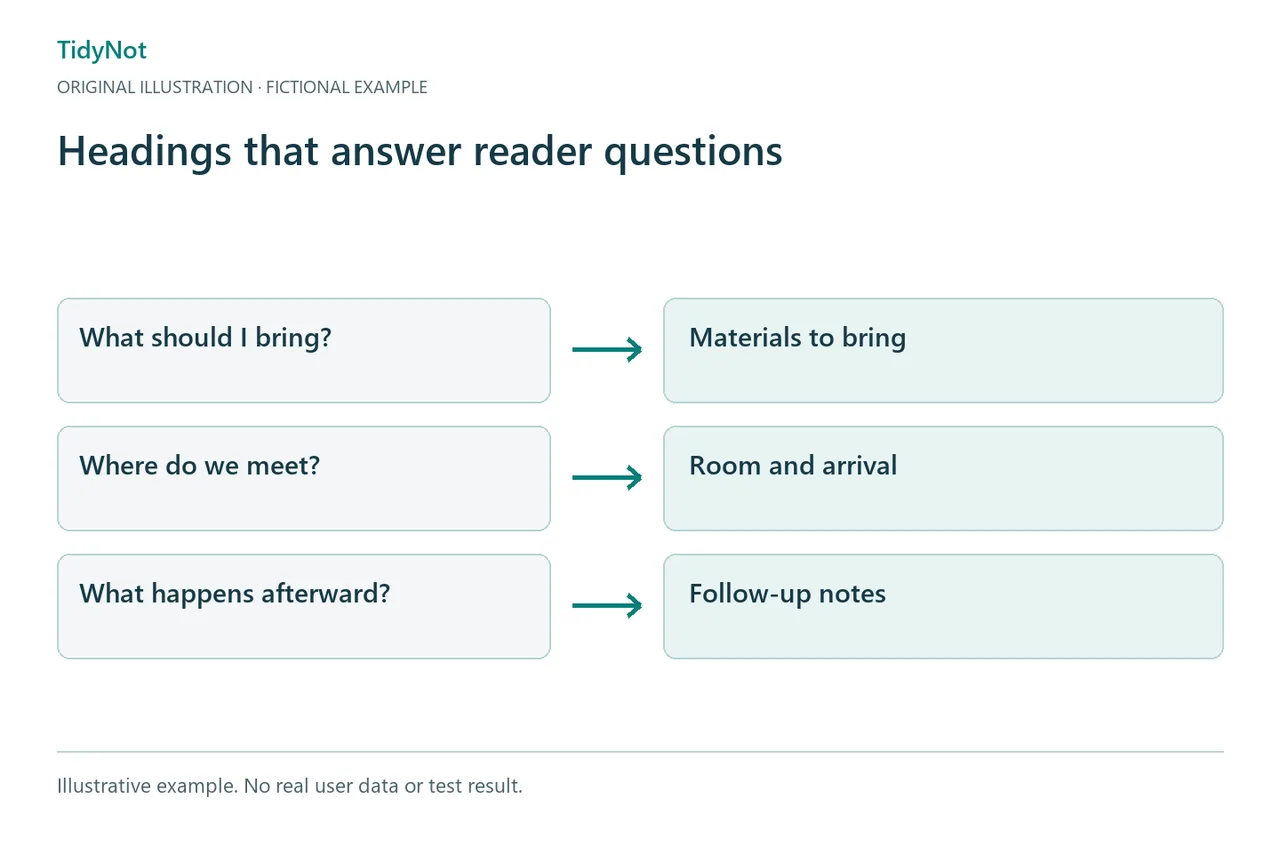
Fictional workshop guide. Section names should match their actual contents.
Use the reader’s questions to name sections
Imagine a shared workshop guide. Its reader may need to know what to bring, how the room is arranged or where to find the follow-up notes. Turn those needs into headings that describe the contents. A heading such as "Materials to bring" is easier to evaluate against the text than a vague label such as "Useful information."
The public Information Architecture excerpt describes different ways to navigate information. Applying that perspective to this workshop document means giving an overview and a route to a particular answer. The example does not claim that we read the complete book or measured anyone’s reading speed. Source 10.1
Match the navigation aid to the reader’s question
Reader’s question | Useful aid | Check in the document |
|---|---|---|
What does this document cover? | Descriptive headings or contents | Names match the actual sections |
Where is the section I need? | Linked contents or document outline | Entries take the reader to the right place |
What does this term mean? | Glossary when needed | Terms and definitions are consistent |
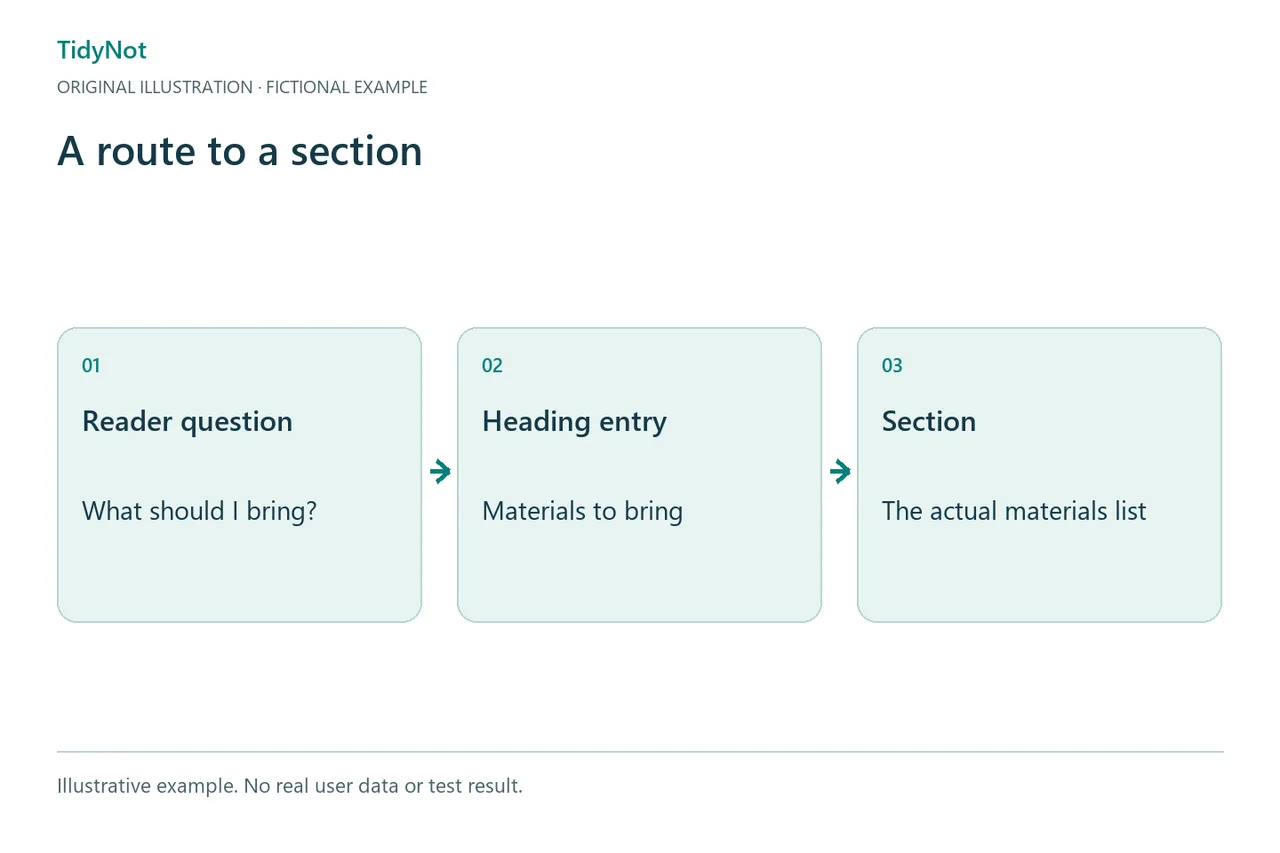
A conceptual navigation route, not an application screenshot.
Make the navigation point to real sections
In Google Docs, heading styles can populate the document outline, and an outline entry takes the reader to its section. Use the appropriate styles in the actual document, then check where each entry leads. A line that merely looks large is not enough evidence that it participates in the outline. Source 10.2
Keep the visible heading and the section’s purpose consistent. If "Materials to bring" leads to the room schedule, fix the mismatch. If a section moves, check the route again. A separate glossary is useful only when an unfamiliar term creates a lookup need; it should not duplicate an ordinary heading list.
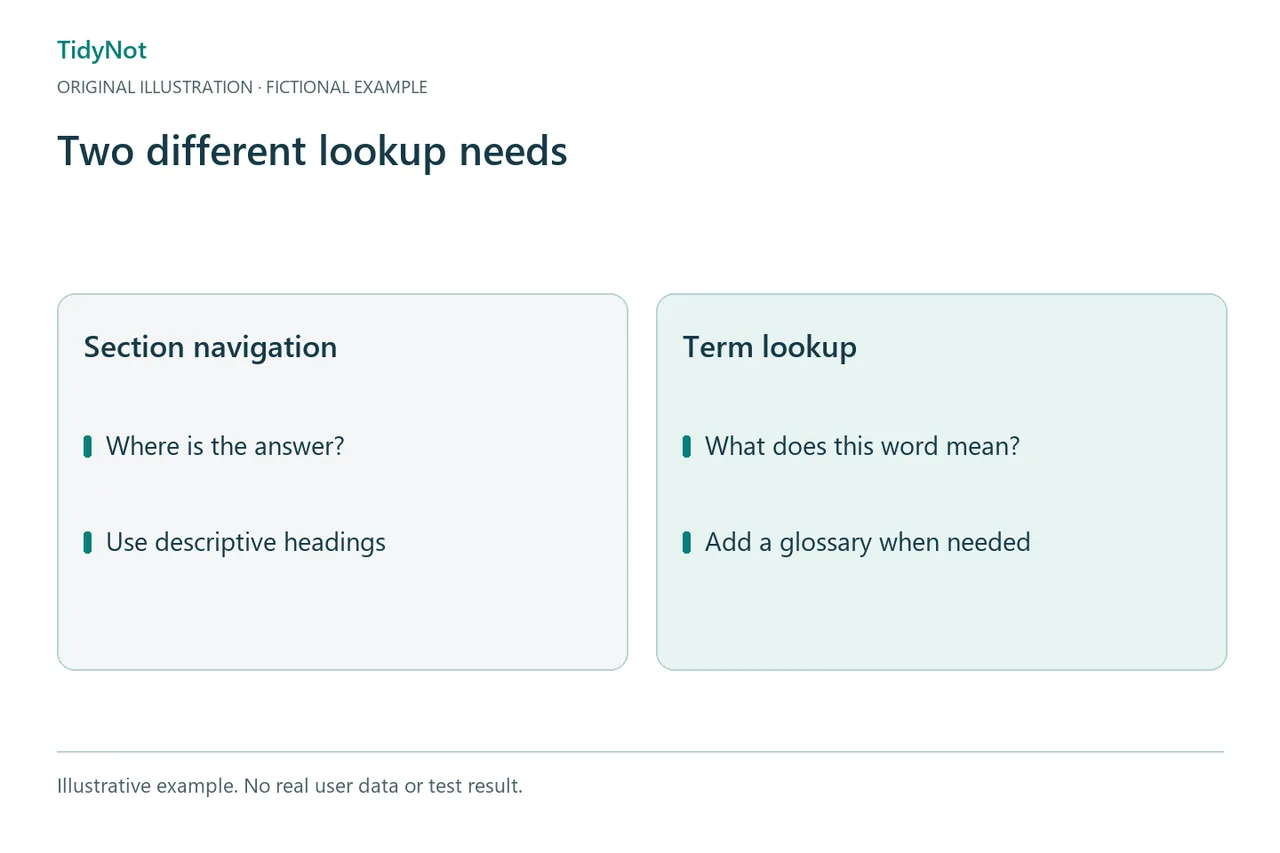
Add the aid that addresses the specific lookup problem.
Try a question before adding another navigation aid
Choose one reader question and follow the route from the document’s opening. Can the reader identify a relevant section and reach the answer? If the answer is missing, a better contents list cannot supply it. Add or revise the actual text before decorating the route.
Check the outline in the final document, including any assistive-technology use that readers depend on. The old left-panel summary feature is not part of this method. A short document with obvious sections may need only its headings.
Check the exported version too
If readers will receive a PDF or another exported version, open that version and try the route to one renamed or moved section. Confirm that its heading and page reference still match. This small check does not replace any accessibility or submission requirements that apply to the document.
Try it with your own information
Turn reader questions into a document outline
Use this small outline to test whether headings explain where a reader should go.
An invented worked example
Use this scenario to see how the decisions fit together, then replace its details with your own observations.
Before: Introduction / Information / Other details. A new volunteer still cannot find arrival instructions.
After: Before your first visit / Where to arrive / What to bring / Who to contact if plans change. These are proposed headings for a fictional guide.
Check: choose “Where do I arrive?” and follow the contents link to the answer. Check the exported file too; visible bold text alone does not establish a heading or working link.
No account needed. Open the worksheet, enter your own notes, then download a text copy. You can also download it blank to complete elsewhere.
Open and download your worksheet
Sources and scope
[10.1] Louis Rosenfeld, Peter Morville and Jorge Arango. Information Architecture: For the Web and Beyond, 4th edition. O’Reilly Media, 2015-10; publisher excerpt 2016-07-27. https://www.oreilly.com/library/view/information-architecture-4th/9781491913529/ Read scope: Edition metadata and publisher excerpt “The anatomy of an information architecture”; full book not read. Limits: Information-environment framework; applying it to one document is an editorial adaptation.
[10.2] Google. View document outlines, rulers, & non-printing characters. Google Docs Editors Help, Undated; checked 2026-10-20. https://support.google.com/docs/answer/6367684?hl=en Read scope: Official help body read, especially headings and navigation, lines 17–57; removed summary feature note also checked. Limits: Google Docs feature documentation, not evidence that every navigation aid helps every document. Removed summary feature is not recommended.
Source relationship: Independent design reference and first-party implementation documentation; no claim that adding every aid improves every document.
The images are original explanatory illustrations of fictional examples. They are not photographs, product screenshots or evidence of a completed practical test.
Evidence and scope
1. Google. View document outlines, rulers, & non-printing characters. Google Docs Editors Help, Undated; checked 2026-10-20.
Claim covered: Google Docs supports headings and a table of contents
Use descriptive headings, then provide a way for readers to see those headings and jump to the section they need. In Google Docs, heading styles can populate the document outline, and selecting an outline entry moves to that section. Add a glossary only when unfamiliar terms create a separate lookup problem; a short document may need no extra navigation. Source 10.2
Google. View document outlines, rulers, & non-printing characters. Google Docs Editors Help, Undated; checked 2026-10-20.. English edition; source-specific context. Checked: .
Official help body read, especially headings and navigation, lines 17–57; removed summary feature note also checked. Google Docs feature documentation, not evidence that every navigation aid helps every document. Removed summary feature is not recommended.
2. Editorial application
Claim covered: A practical step to try in your own setting
If readers will receive a PDF or another exported version, open that version and try the route to one renamed or moved section. Confirm that its heading and page reference still match. This small check does not replace any accessibility or submission requirements that apply to the document.
TidyNot editorial suggestion. English edition; fictional example. Checked: .
TidyNot editorial proposal. No completed practical trial, measured benefit or universal outcome is claimed.