In Photos on Mac, select a photo and choose Image > Adjust Date and Time to change its timestamp and, when necessary, its time zone. [1] The software can change the record; it cannot tell you what the true date was. Begin with a small set and evidence for each correction, then keep an old-value, new-value, and evidence log.
Separate a wrong timestamp from an uncertain memory
This walkthrough uses Photos 11.0 as documented for macOS Tahoe 26. Choose a few photos with a demonstrable timestamp problem, not an entire library that “looks out of order.” Do not start by selecting every photo from a trip, camera, or imported folder.
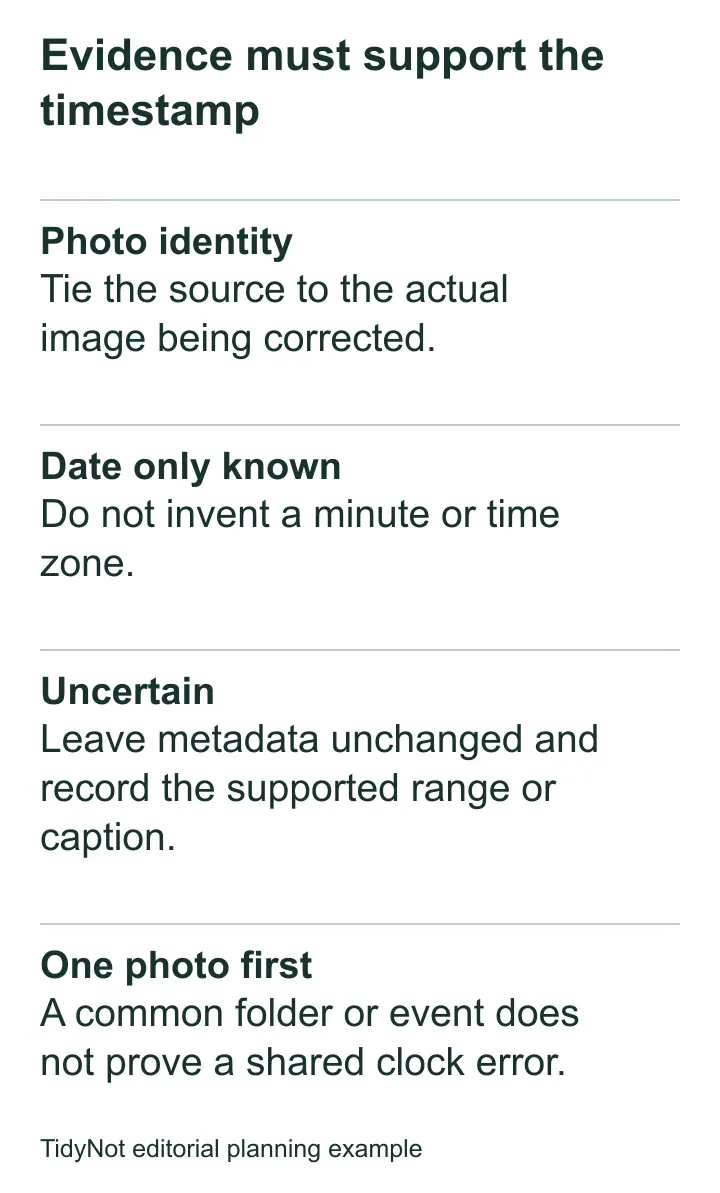
Find independent evidence tied to the actual image. A contemporaneous record that identifies the photographed event, a reliably timed reference image of the same moment, or documented camera-clock information may help. A ticket proves a scheduled event date, but does not by itself prove when every nearby photograph was taken.
Write what the evidence establishes and what it does not. “This was taken on the wedding day” may establish a date but not a minute or time zone. If you cannot support the full correction you plan to enter, leave the timestamp unchanged and record the known date or range in a caption or private log. Do not invent noon as though it were the real capture time.
Before editing, check that you have a current backup of the photo library. Apple recommends a local backup even when iCloud Photos is enabled. Files stored outside the library need their own backup; a correction log is not a substitute. 2
Record the original values before editing
Select the first photo and open its Info window using the toolbar Info button or Command-I. Apple documents this window and the ability to add a caption. [1] Record an identifier you can use to find the photo again, plus its currently displayed date and time. Include the original time-zone setting shown when you inspect Adjust Date and Time.
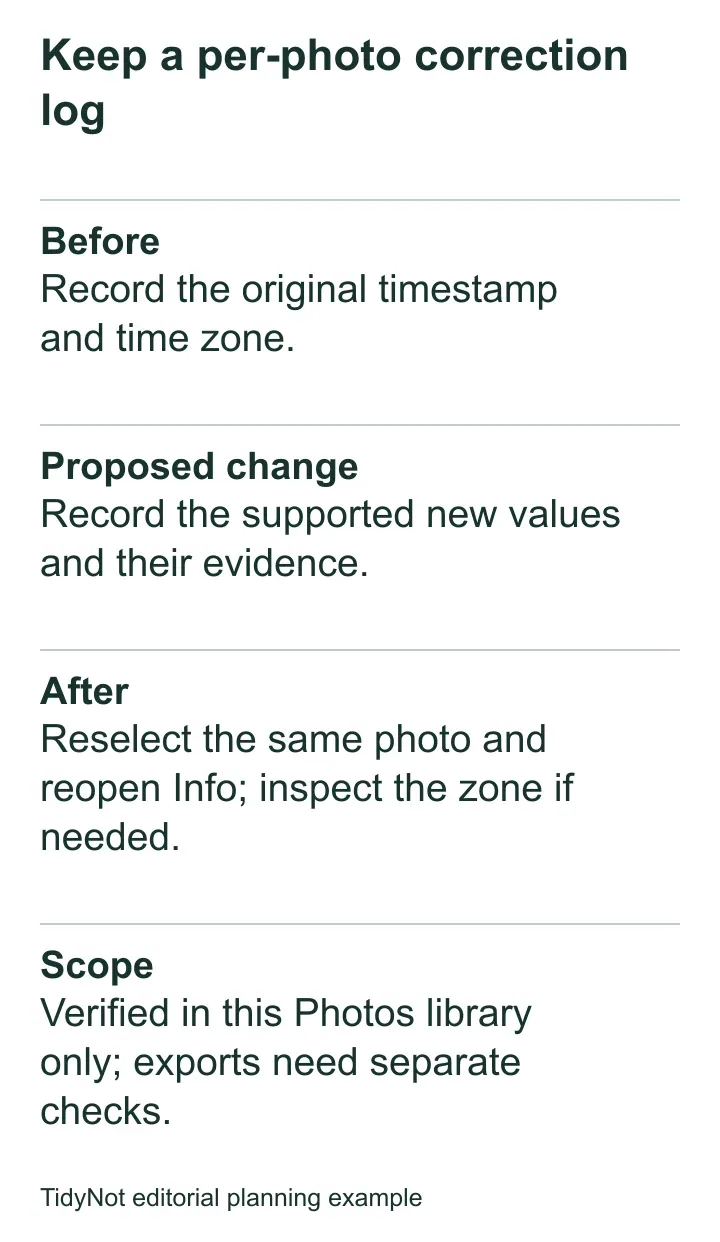
Make a log with five fields: photo identifier, original timestamp and zone, proposed timestamp and zone, evidence, and result. If different photos have different support, give them separate rows. A folder name or visual similarity is not evidence that all their clocks had the same error.
Do not modify the original evidence to match your intended answer. Keep the dated source, contemporaneous note, or reference image available. If you discover the evidence conflicts, move the photo to the unresolved list before changing its metadata.
Correct one supported photo as a test
With only the intended photo selected, choose Image > Adjust Date and Time. Enter the verified value in the Adjusted field. If needed, select the supported time zone on the map and choose the closest city, then click Adjust. These are the controls in Apple’s macOS Tahoe 26 guide. [1]
Read the complete date before confirming, especially when the day and month could be confused. Check AM versus PM or the 24-hour time, and check the year. A correct day in the wrong year is still a misleading record.
Do not apply a bulk correction just because the first image looks right afterward. This small-task procedure uses one photo at a time so each changed value can be matched to its evidence. If you later choose a batch workflow, first establish its exact selection and offset behavior from current documentation and a suitable test.
Verify the saved metadata, not just the photo’s position
Close the information view, reselect the same photo, and reopen Info. Compare the displayed timestamp with your intended value. Reopen Adjust Date and Time to inspect the zone if needed, then cancel without making another change. Mark the log row checked only when the values agree.
Look at neighboring dated photos as a plausibility check, not as a replacement for evidence. A photograph appearing in a more convenient place in the library does not prove its new timestamp is true. Repeat the individual procedure only for the remaining supported photos.
If you find a mistake, use the recorded original values to guide a correction and check again. Do not assume an unverified undo or an export will preserve every version of metadata. This result is scoped to the inspected Photos library; external exported files require their own checks.
End with two clear groups: changed and verified, or unchanged because the date remains uncertain. A useful family record can include honest uncertainty. A precise-looking date that you cannot support makes the library look orderly at the expense of accuracy.
A simple check sheet
Photo | Before | Proposed correction | Evidence and limit | Verified result |
|---|---|---|---|---|
Your photo identifier | Date, time and zone as shown | Only supported values | Source and unresolved detail | Reopened values, or unchanged |
Mac Photos date corrections: quick answers
Where is the date control?
For Photos 11.0 on macOS Tahoe 26, select the intended photo and choose Image > Adjust Date and Time. This article is scoped to that documented version; check the matching Apple guide if your interface differs. 1
What if I know the day but not the time or zone?
Do not invent precise values. Leave the timestamp unchanged and record the supported date or range in a caption or private log.
What should I check after changing a time zone?
Read the complete displayed date, time and zone again and compare them with the evidence and correction log. If the result is unexpected, stop and resolve it before editing another photo. This is a verification step, not a claim about untested system-setting behavior.
Final check
- Identify independent evidence and its date, time, and zone limits.
- Record each original value before changing anything.
- Adjust one supported photo at a time.
- Reopen Info, compare with the log, and leave uncertain photos unchanged.
When this task is done
Done means every changed timestamp and time zone matches the recorded evidence and the reopened Photos information. Uncertain photos remain unchanged with their uncertainty documented; no claim is made about exported files.
Try it with your own information
Keep a per-photo correction and verification log
Record each photo separately. These invented cases illustrate reasoning errors, not tested Photos behavior.
An invented worked example
Use this scenario to see how the decisions fit together, then replace its details with your own observations.
Fictional failure: a folder contains two events. A dated record identifies photo A as June 8; nothing identifies photo B. Giving both the same date would turn a known date for A into an unsupported claim about B. Leave B unchanged and record the uncertainty.
Fictional mismatch: the proposed year is 2008, but the value recorded after reopening is 2018. The row is not verified, even if the photo now looks conveniently placed. Stop, compare the original-value record and evidence, resolve the mismatch, then check again before editing another photo.
Partial evidence: a note establishes the day but not the time or zone. Record that limit; do not manufacture a precise timestamp. These examples do not establish batch offsets, Memories, smart-album or export behavior.
No account needed. Open the worksheet, enter your own notes, then download a text copy. You can also download it blank to complete elsewhere.
Open and download your worksheet
Sources
- Add titles, captions, and more to photos and videos on Mac, Photos 11.0 / macOS Tahoe 26. Checked 2026-10-22. Info window, captions, Image > Adjust Date and Time, Adjusted field, and time-zone/city controls. Editing capability does not establish historical truth, batch-offset behavior, or exported metadata behavior.
- Apple: Back up your photo library on Mac. Checked 2026-11-01 KST. Local-backup guidance and the exception for referenced files read. No backup was created or restored in this editorial review.
Evidence and scope
1. support.apple.com — editor-verified original source
Claim covered: Before editing, check that you have a current backup of the photo library. Apple recommends a local backup even when iCloud Photos is enabled. Files stored outside the library need their own backup; a correction log is not a substitute. 2
Apple recommends a local photo-library backup even with iCloud Photos. Images stored outside the library require separate backup. No device backup or restoration was performed.
support.apple.com — editor-verified original source. Use only the locale/version and evidence scope stated in the manuscript and source notes.. Checked: .
2. support.apple.com — editor-verified original source
Claim covered: Apple: Back up your photo library on Mac. Checked 2026-11-01 KST. Local-backup guidance and the exception for referenced files read. No backup was created or restored in this editorial review.
Apple recommends a local photo-library backup even with iCloud Photos. Images stored outside the library require separate backup. No device backup or restoration was performed.
support.apple.com — editor-verified original source. Use only the locale/version and evidence scope stated in the manuscript and source notes.. Checked: .
3. Editorial application
Claim covered: TidyNot practical checklist, examples and step sequence.
Practical editorial suggestions distinguished from sourced factual claims.
TidyNot editorial suggestion. General readers within the manuscript stated scope.. Checked: .
No personal test, measured benefit, provider implementation or safety guarantee is claimed.