To work from a downloaded ZIP in Windows 11, right-click the archive, choose Extract All, and select a new destination folder. Microsoft also supports extracting selected files by dragging them out of the archive. 1 The job is complete only when the required files exist outside the ZIP and open from that destination, not when you can browse their names inside the archive.
Confirm that this is the bundle you expected
Use an expected ZIP from a trusted source containing ordinary documents or images. Match the filename and context with the message or download page you used. If an archive arrives unexpectedly or contains software you were not expecting, do not run it as part of this task.
In File Explorer, inspect the archive’s listed filenames and folders. Compare them with any contents list supplied by the sender. For example, a promised packet might contain a brief PDF, a schedule PDF, and an Images folder. Write down those expected items before extracting.
A ZIP filename is not a contents guarantee. If the bundle has unexpected executable files, misleading names, or a password request you were not told about, stop and verify the source through a known channel. Extracting a file does not establish that it is safe to open.
Choose a fresh destination that is easy to identify
Create or select a new working location with a distinct name, such as Workshop-materials-extracted. Avoid dropping the contents into a crowded Downloads folder or an existing project folder with similar filenames. A fresh destination makes missing items and accidental overwrites easier to detect.
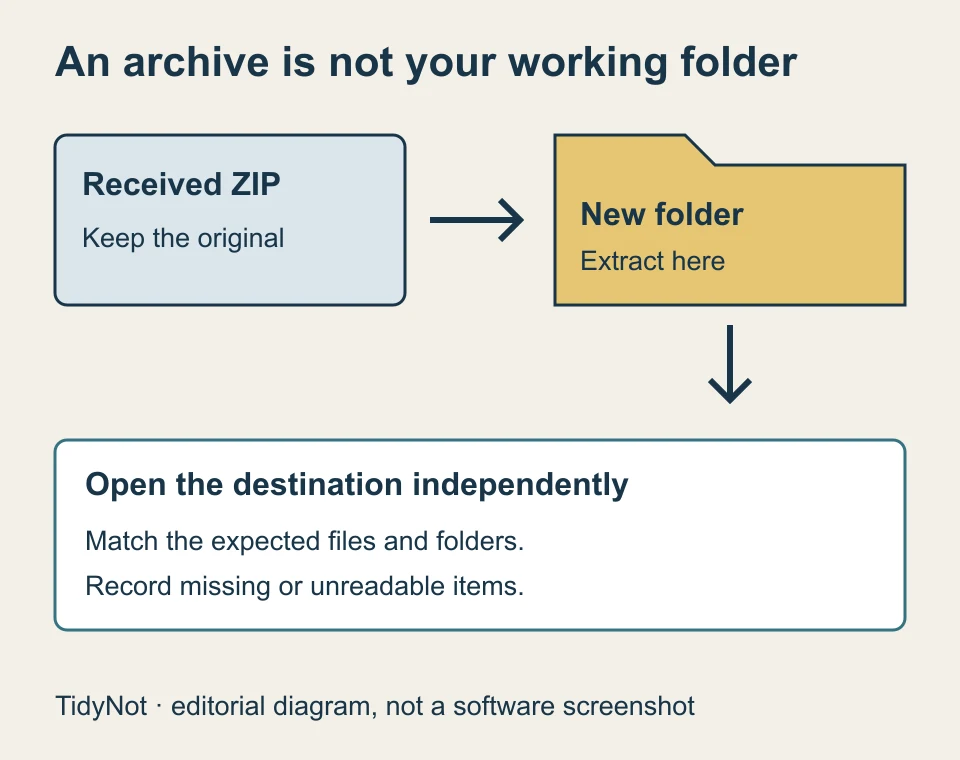
Keep the original ZIP unchanged for comparison. Do not use the same name for the archive and working folder if that will confuse you. Record the destination in your note, including its parent folder, so you can navigate there independently after extraction.
For private material, choose a location appropriate to its sensitivity and existing sharing settings. This procedure does not ask you to enable a cloud service, upload the archive, or change folder permissions. If the intended location is shared, check whether the bundle belongs there before using it.
Extract the contents once
Right-click the ZIP and select Extract All. Follow the dialog to choose the fresh destination and complete extraction. For only one required file or folder, Microsoft documents opening the archive and dragging that item to a new location instead. 1 Choose the full or selected extraction route deliberately.
Wait for extraction to finish and read any errors. If Windows asks to replace files, cancel and inspect the destination instead of choosing Replace all. A supposedly fresh destination should not already contain your working copies.
This walkthrough is limited to ordinary, unencrypted ZIP files in Windows 11. Microsoft’s documentation specifically notes that Windows 11 version 24H2 does not support operations on encrypted archives. 1 Do not treat a password-protected or damaged archive as a routine extraction success, and do not install an unfamiliar utility merely to continue.
Navigate away from the archive and verify the working files
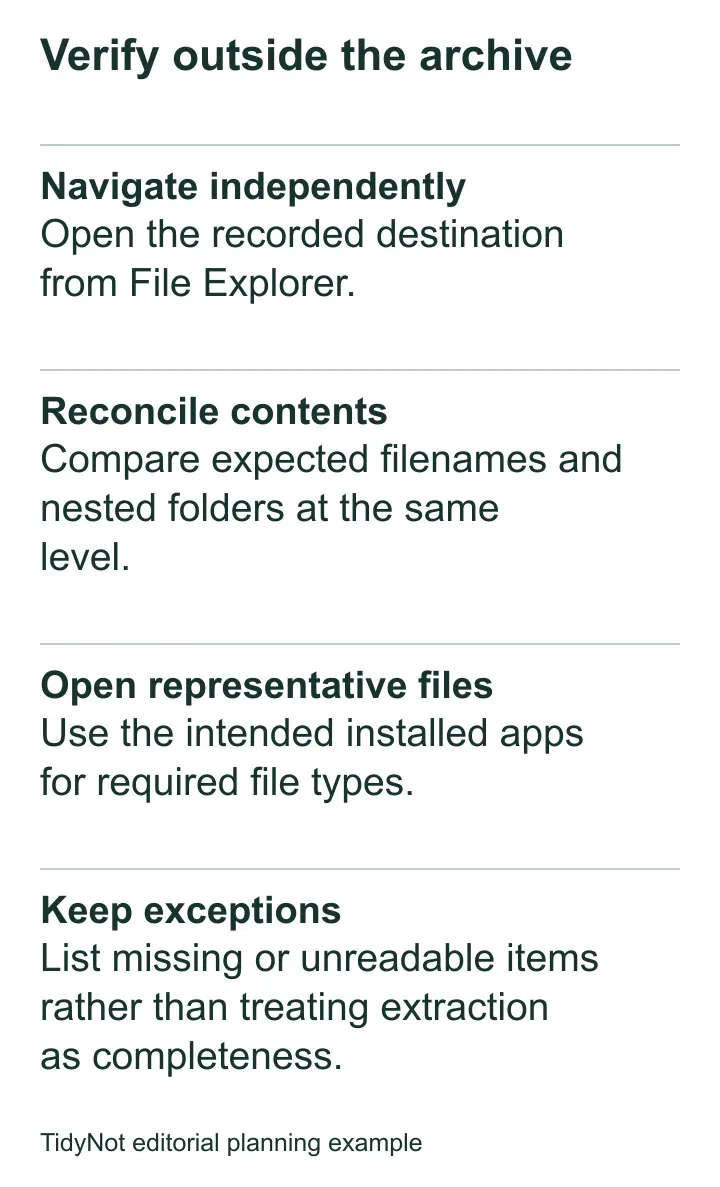
Do not assume that finishing the extraction has opened the correct folder. Close the archive view. Open the destination folder directly from File Explorer using the location you recorded. Inspect the address bar to make sure you are inside the extracted folder, not browsing a path that still goes through the .zip file.
Compare the required filenames and folders with your expected list. Open nested folders before deciding they are empty or missing. If the sender supplied a file count, compare counts at the same folder level; three top-level items may contain many individual images.
Open a representative ordinary document from the extracted location using its expected installed application. Check that the content is readable and that the document is the version you expected. If the task depends on several different document types, test one representative of each rather than assuming one successful PDF proves everything opens.
Keep missing, unreadable, or failed items on a short exception list. An extraction can finish while the source bundle itself remains incomplete. Do not fill gaps by renaming unrelated files or deleting the archive before the contents are reconciled.
Leave one clear working location
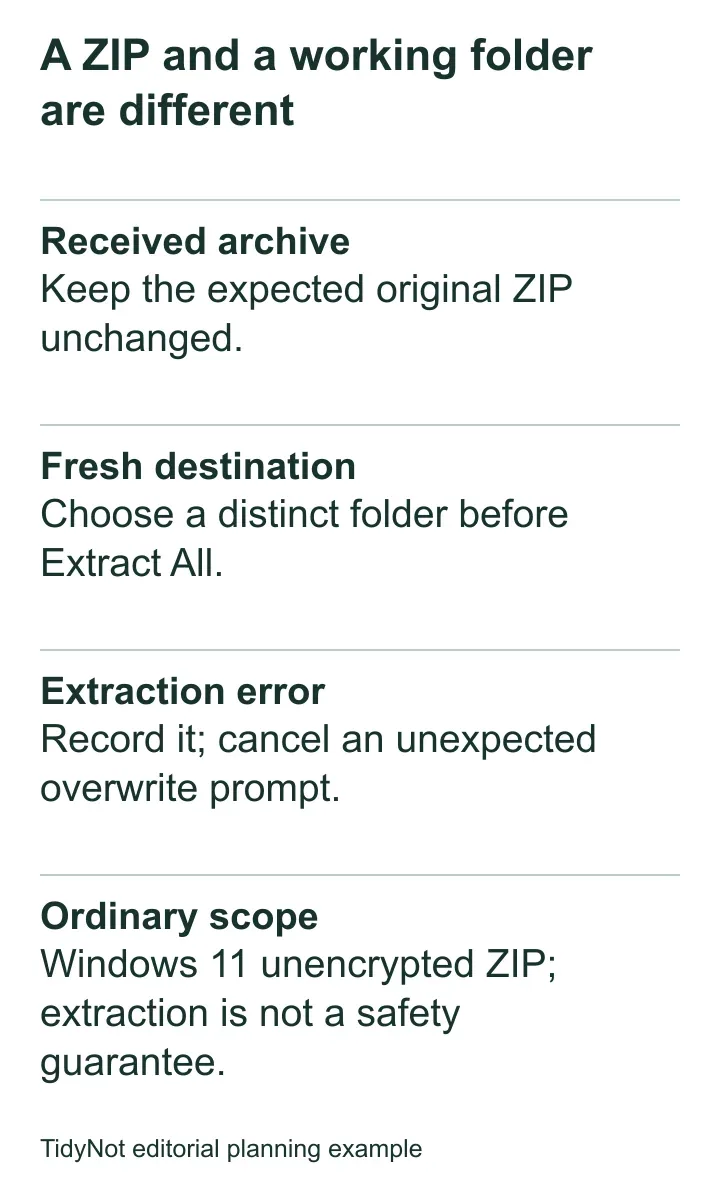
Use the extracted folder for subsequent edits, with the original ZIP kept separately as the received bundle. If you need to change a document, confirm its save location is inside that working folder. Avoid keeping multiple unexplained “extracted again” folders that leave you unsure which copy contains your changes.
A simple check sheet
Stage | What to record or do | Check |
|---|---|---|
Source | Identify the downloaded archive | Do not assume extraction proves safety |
Destination | Choose a named working folder | Keep the original archive |
Extraction | Use Extract All or extract selected items | Open files from the destination to check |
ZIP extraction: quick answers
Is opening the ZIP the same as extracting it?
No. Browsing filenames inside the archive is different from having working files in a destination folder. Use Extract All, or deliberately drag selected items out, then open that destination independently.
What if I see a replace-files prompt?
Cancel and inspect the destination before continuing. This guide uses a fresh folder so that existing work is not overwritten. Do not choose Replace all merely to finish the task.
What should I check after extraction?
Navigate to the destination yourself rather than assuming a window opened there. Match required filenames and nested folders with the expected list, then open representative ordinary files with their installed applications. List failures separately.
Final check
- Match the ZIP with the expected source and document list.
- Choose a new, clearly named destination without existing working files.
- Extract and inspect any warnings or failures.
- Open the destination independently and test required document types.
When this task is done
Done means required files exist in the identified folder outside the ZIP and representative documents open from that folder. Missing or failed items are listed, and the unchanged original archive is retained.
Sources
- Zip and unzip files. Checked 2026-10-22. Windows extraction by Extract All or dragging selected items; encrypted-archive limitation specified for Windows 11 24H2. Extraction is not malware verification, source-completeness proof, or a guarantee that every file format is supported.
- Western Kentucky University: Extracting a Compressed Folder. Checked 2026-10-29. In Extract All, use Browse to choose the destination rather than assuming the default folder is the one you want. Windows 11 extraction workflow, not file safety validation.
Evidence and scope
1. support.microsoft.com — editor-verified original source
Claim covered: To work from a downloaded ZIP in Windows 11, right-click the archive, choose Extract All, and select a new destination folder. Microsoft also supports extracting selected files by dragging them out of the archive. 1 The job is complete only when the required files exist outside the ZIP and open from that destination, not when you can browse their names inside the archive.
Extract All and dragging selected items are supported. The encrypted-archive limitation is explicitly scoped to 24H2. Extraction is not a safety or completeness guarantee.
support.microsoft.com — editor-verified original source. Use only the locale/version and evidence scope stated in the manuscript and source notes.. Checked: .
2. support.microsoft.com — editor-verified original source
Claim covered: Right-click the ZIP and select Extract All. Follow the dialog to choose the fresh destination and complete extraction. For only one required file or folder, Microsoft documents opening the archive and dragging that item to a new location instead. 1 Choose the full or selected extraction route deliberately.
Extract All and dragging selected items are supported. The encrypted-archive limitation is explicitly scoped to 24H2. Extraction is not a safety or completeness guarantee.
support.microsoft.com — editor-verified original source. Use only the locale/version and evidence scope stated in the manuscript and source notes.. Checked: .
3. support.microsoft.com — editor-verified original source
Claim covered: This walkthrough is limited to ordinary, unencrypted ZIP files in Windows 11. Microsoft’s documentation specifically notes that Windows 11 version 24H2 does not support operations on encrypted archives. 1 Do not treat a password-protected or damaged archive as a routine extraction success, and do not install an unfamiliar utility merely to continue.
Extract All and dragging selected items are supported. The encrypted-archive limitation is explicitly scoped to 24H2. Extraction is not a safety or completeness guarantee.
support.microsoft.com — editor-verified original source. Use only the locale/version and evidence scope stated in the manuscript and source notes.. Checked: .
4. support.microsoft.com — editor-verified original source
Claim covered: Zip and unzip files. Checked 2026-10-22. Windows extraction by Extract All or dragging selected items; encrypted-archive limitation specified for Windows 11 24H2. Extraction is not malware verification, source-completeness proof, or a guarantee that every file format is supported.
Extract All and dragging selected items are supported. The encrypted-archive limitation is explicitly scoped to 24H2. Extraction is not a safety or completeness guarantee.
support.microsoft.com — editor-verified original source. Use only the locale/version and evidence scope stated in the manuscript and source notes.. Checked: .
5. Editorial application
Claim covered: TidyNot practical checklist, examples and step sequence.
Practical editorial suggestions distinguished from sourced factual claims.
TidyNot editorial suggestion. General readers within the manuscript stated scope.. Checked: .
No personal test, measured benefit, provider implementation or safety guarantee is claimed.