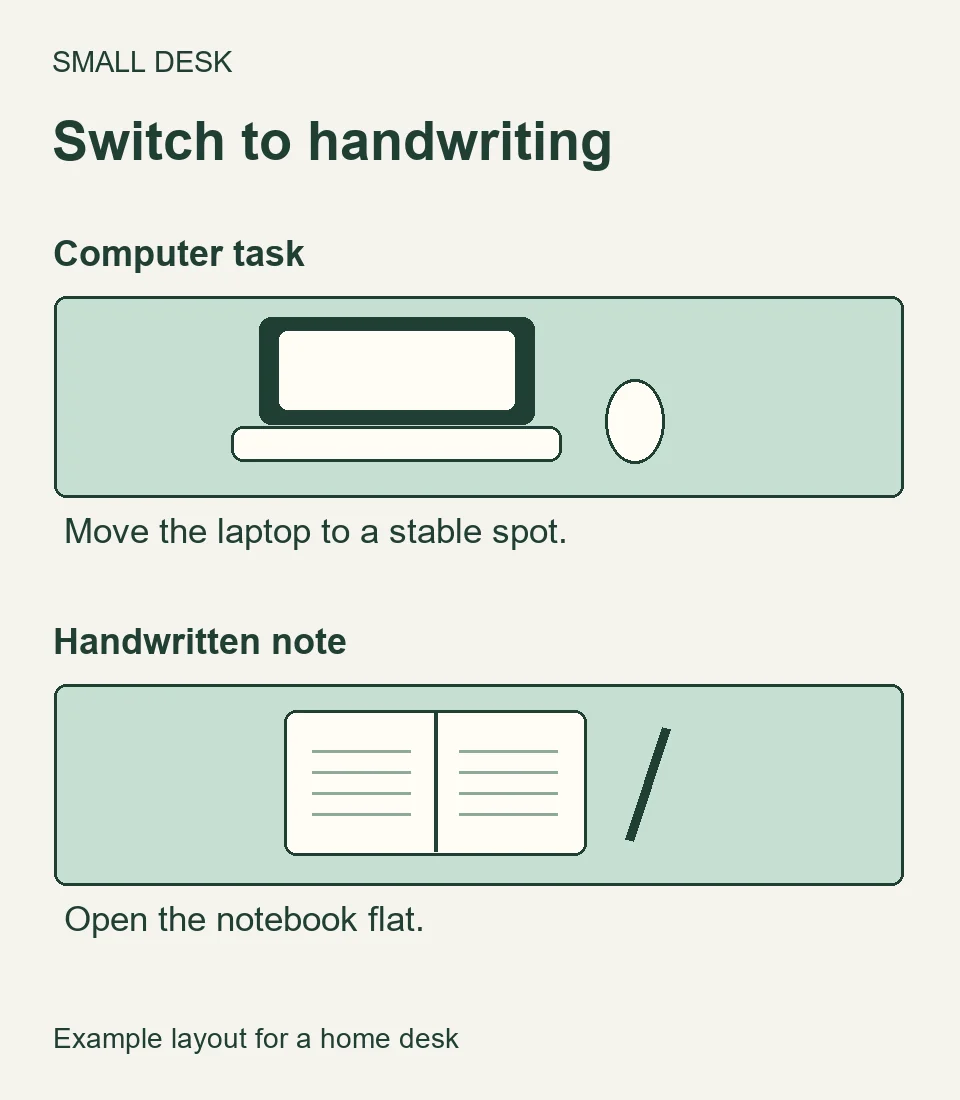
Try opening your notebook to the page you want to write on. If one cover rests on a stack of mail, start with the things underneath it. Leave room for the open book and your writing hand, then choose where the displaced items belong. You can do the same check with a laptop and the mouse you actually use.
Give the surface three jobs
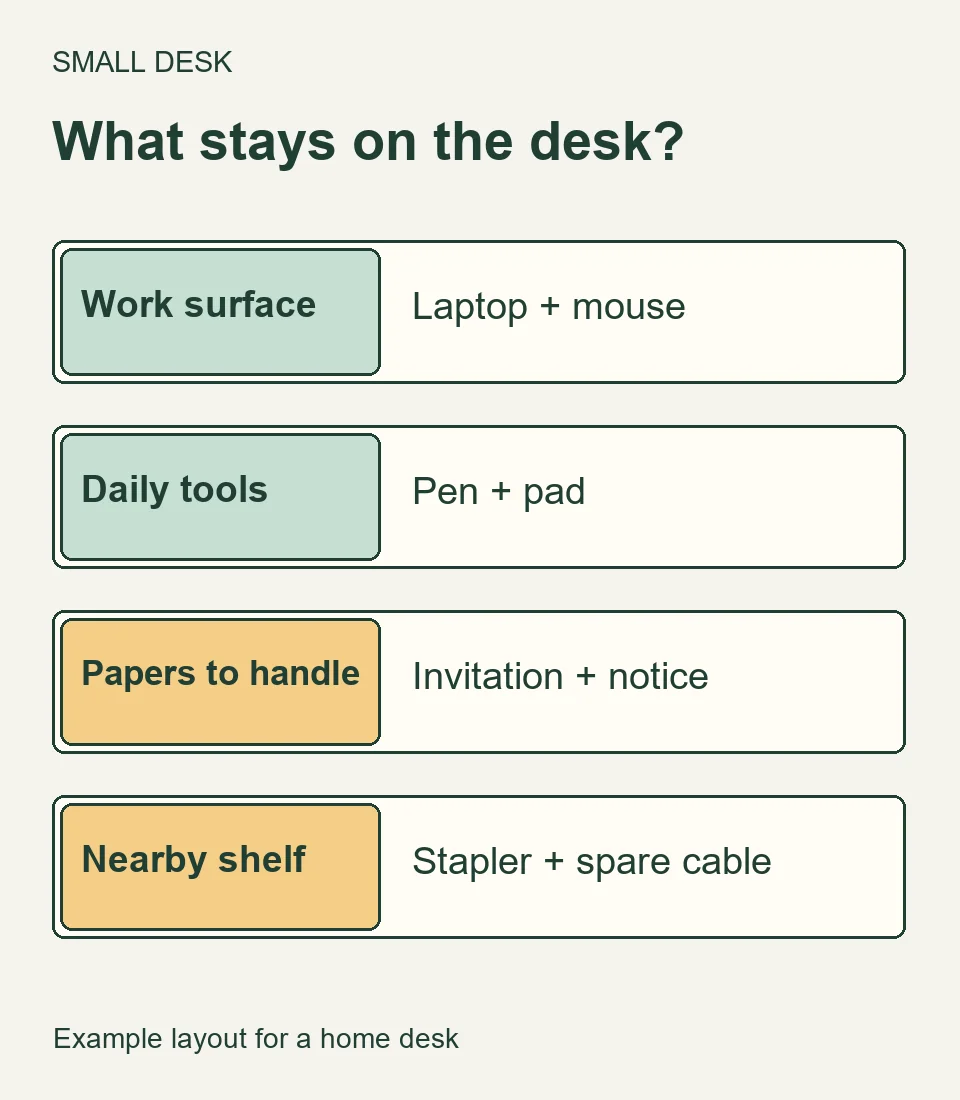
The working space holds the things you need for the task in front of you. Daily tools have a place you can put them back with one hand. Papers waiting for a decision stay together with a note about what happens next. These three jobs can share a small desk without taking equal shares of its surface. A pen can live in a mug on the shelf beside the desk. An invitation can wait inside a folder on that shelf.
Place eight objects
Imagine you find a laptop, a mouse, a pen, a memo pad, an invitation, a notice, a stapler and a spare cable on your desk. For a computer task, set down the laptop, move the mouse from side to side and check that it clears the other objects. Put the pen and pad together at the edge you usually reach for. Keep the stapler and spare cable in an existing drawer or on a nearby shelf. Give them a spot you can describe so you know where to return them.
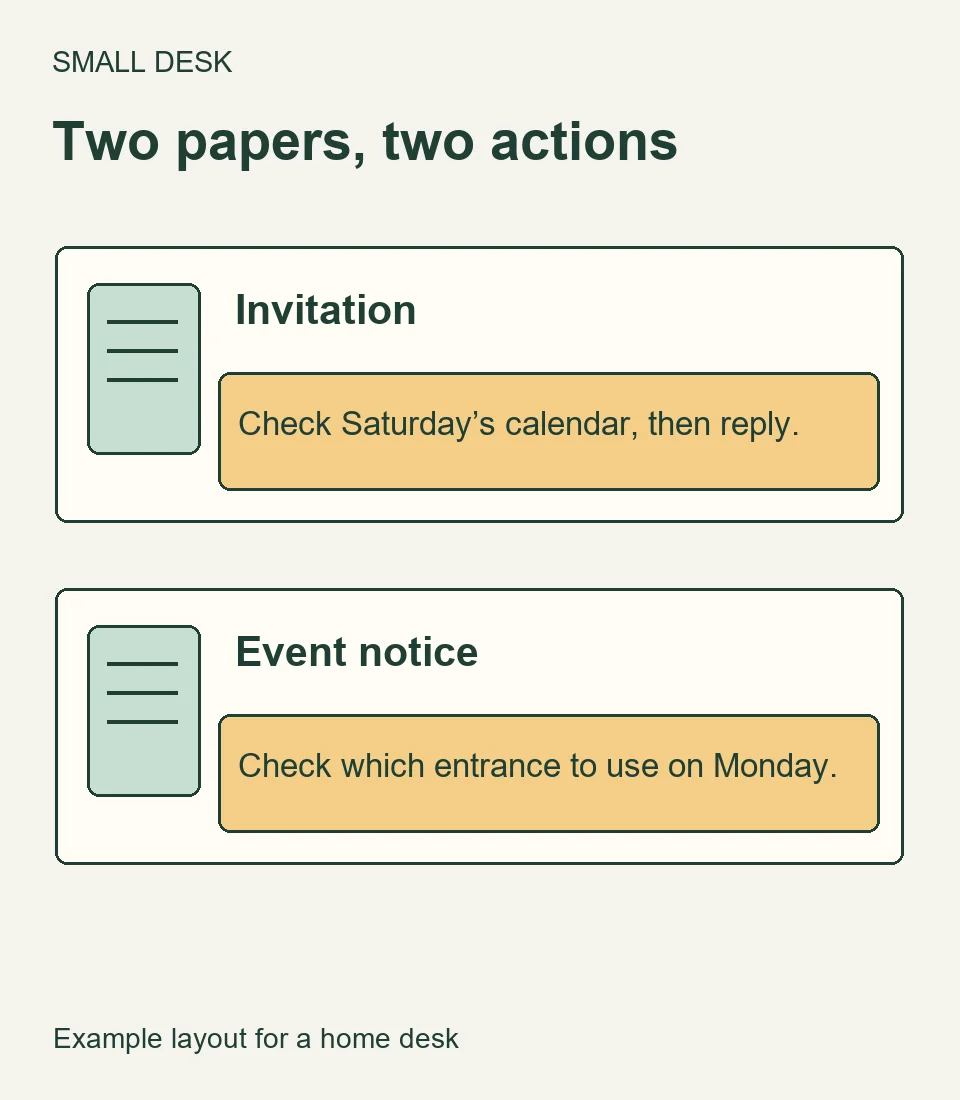
Put the invitation and notice together. On a slip beside the invitation, write “check Saturday’s calendar, then reply to Lee.” For the notice, write “check which entrance to use on Monday.” Each paper now has a reason to be there and a way to leave.
Switch from screen to paper
Desk job | While using the computer | While writing a note |
|---|---|---|
Working space | Laptop open, mouse beside it | Close and move the laptop to a stable spot, then lay the notebook flat |
Daily tools | Pen and memo pad in their return spot | Take the pen out and put it back when the note is finished |
Papers to process | Invitation and notice together in one folder | Keep the folder outside the open notebook’s footprint |
If the folder fills up, pick up the front sheet and read its next action. A reply sent? Put the invitation with event details you still need, or let it go if you have finished with it. Still waiting for a date? Write when to check again. Work through the folder before adding another pile.
Adapt it to the desk you have
With no drawer, try the nearest shelf for supplies you use occasionally. Sit down and pull the chair back once to check that you have left space for your feet and the chair. At a shared desk, keep your pen, pad and waiting papers in a container you already own. When you finish, carry it to your shelf so the next person can open their own work.
Leave a place for the next task
Fill in one row before you stop. “Write the envelope” tells you exactly how much surface to leave free.
Next task | What needs to fit? | Where do the daily tools go back? | Which paper needs action? |
|---|---|---|---|
Your task | Your open book or equipment | Your return spot | Your next action |
Try placing the next task on the surface. If it lies flat, the occasional tools are back in place and you know what to do with the waiting papers, the desk is ready for that task.
Plan a screen-to-paper desk switch
Test the surface with the actual task. Record where objects move during the switch, not just where a tidy photograph would place them.
Sources for the desk layout
OSHA’s workstation guide covers space under a desk, placement of the keyboard and keeping the mouse close to it. Here those points apply when you try your own laptop and mouse and check the space around your feet.
In WAM’s desk column, Kenji Sakato describes giving frequently used tools a regular place. His column on filing papers starts with understanding what a document is for. The eight objects, the invitation reminder and the switch to handwriting are examples we devised for a home desk.
Evidence and scope
1. Desks
Claim covered: Under-desk clearance directly supports leaving leg space clear. No dimensions prescribed for the home example.
BrowserOS visible introduction and Quick Tips; accordions and illustrations not inspected.
Desks. Home desk. Checked: .
One of three sections of the same OSHA eTool.
2. Keyboards
Claim covered: Keyboard introduction addresses placement together with other devices; useful for checking the laptop and mouse together.
BrowserOS visible introduction and Quick Tips; accordions and illustrations not inspected.
Keyboards. Home desk. Checked: .
One of three sections of the same OSHA eTool.
3. Pointer/Mouse
Claim covered: Quick Tips specifically recommends the mouse close to the keyboard. Moving it across the actual available surface is our example.
BrowserOS visible introduction and Quick Tips; accordions and illustrations not inspected.
Pointer/Mouse. Home desk. Checked: .
One of three sections of the same OSHA eTool.
4. 第2回:必要なものがすぐに取り出せる!?
Claim covered: May 2012 column supports prioritizing frequent tools and returning them to assigned places. Exclude generalizations about gaze, motivation and efficiency.
BrowserOS full Japanese column text, including issue attribution; illustrations not inspected.
第2回:必要なものがすぐに取り出せる!?. Home desk. Checked: .
Practical advice from the same WAM columnist.
5. 第11回:分けるということはわかるということ
Claim covered: February 2013 column supports understanding what a document is for before filing it. Invitation, notice and next-action notes are editorial applications.
BrowserOS full Japanese column text, including issue attribution; illustrations not inspected.
第11回:分けるということはわかるということ. Home desk. Checked: .
Practical advice from the same WAM columnist.
6. Editorial application
Claim covered: The eight objects and the invitation reminder illustrate one home desk.
An editorial example of switching from a laptop to handwriting.
TidyNot editorial suggestion. Home desk. Checked: .
No household trial or measured outcomes.